Here’s a brief guide on managing product sharing settings through the Customizer, allowing customers to share products directly from your store:
-
Access Your WordPress Dashboard
Log in to your WordPress site using your username and password, as mentioned in “How to Log In to Your WordPress Dashboard”. -
Navigate to the Customizer
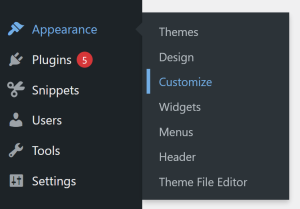
From the dashboard, go to Appearance > Customize.
-
Locate the Product Sharing Settings
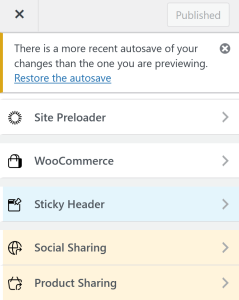
Inside the Customizer, go to Product Sharing.
-
Edit Product Sharing
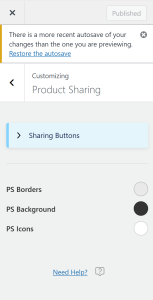
Here you can see the layout of the Product Sharing section, which contains the Sharing Buttons, and color palettes to change the borders, background and icon colors.
-
Enable or Disable Product Sharing
Under Sharing Buttons, choose which platforms customers can use to share products, such as:-
Facebook
-
Twitter (X)
-
Pinterest
-
Email
-
-
Edit Colors and Hover Effects
Customize icon colors and hover states to match your store’s branding. -
Preview Your Changes
Use the live preview to confirm the sharing icons display correctly on desktop and mobile devices. -
Save Changes
When you’re happy with the setup, click Publish to apply the updated product sharing settings.
By configuring product sharing, you make it easier for customers to promote your products across social platforms.