Here’s a brief guide on how to adjust your website’s overall style using the OceanWP theme in WordPress:
-
Access Your WordPress Dashboard
Log in to your WordPress site using your username and password, as mentioned in “How to Log In to Your WordPress Dashboard”. -
Navigate to the Customizer
From the left-hand menu, go to Appearance > Customize. The Customizer lets you edit your site’s appearance and instantly preview changes.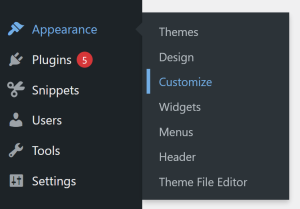
-
Find the General Options Section
Inside the Customizer, open General Options > Site Style & Settings. This area controls your site’s main colors, background, borders, and other visual details.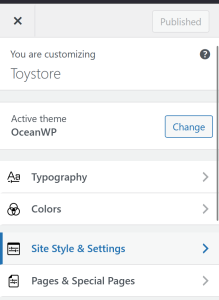
-
Adjust Your Site’s Layout
You can choose site layout presents from the menu. You may also change their measurements and the background.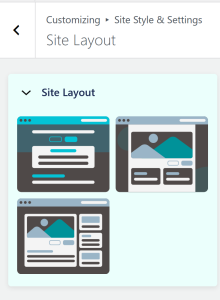
-
Create Site Icons
Inside Site Style & Settings, you can create and edit your site icons as well.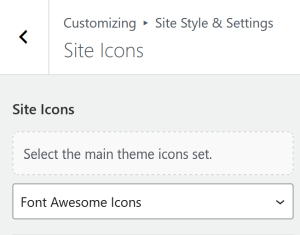
-
Customize Site Buttons
You can change your site buttons, customizing their size and borders, as well as their specific colors and typography. For more general site changes, visit colors and typography. You may also customize the “Scroll to Top” button in the Scroll To Top section of Site Style & Settings, as well as Site Forms and Site Pagination. -
Preview Your Changes
Use the live preview to see updates in real time. Check how your color and background choices look on desktop, tablet, and mobile screens. -
Save and Publish
Once you’re satisfied with your new site style, click Save & Publish.
By following these steps, you can easily personalize your site’s overall appearance, making sure your design reflects what you want.