Before you can customize your OceanWP site, you’ll need access to your WordPress dashboard, the control center for everything from themes to posts. Logging in only takes a few seconds once you know where to look.
Step 1: Go to the Login Page
Open your web browser and visit your site’s login URL:
(Replace yourdomain.com with your actual website address.)
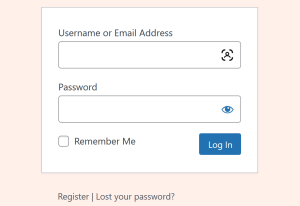
Step 2: Enter Your Credentials
On the login screen, type in your Username or Email Address and Password.
To make future logins faster, tick “Remember Me” on the login page, but only on personal or secure devices.
Step 3: Access the Dashboard
Click Log In, and you’ll be taken to the WordPress Dashboard usually located at:
This is where you’ll manage themes, plugins, pages, and site settings, including OceanWP.
Step 4: Troubleshooting Access
-
Forgot Password? Click “Lost your password?” on the login page to reset it via email.
-
Login Redirect Loop? Clear your browser cache or disable plugins through cPanel’s File Manager if needed.
Once logged in, you can start customizing your layout, and building your site exactly how you want.